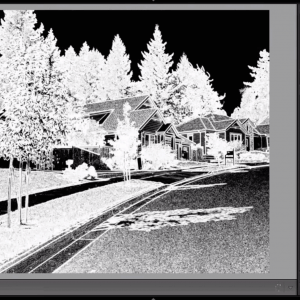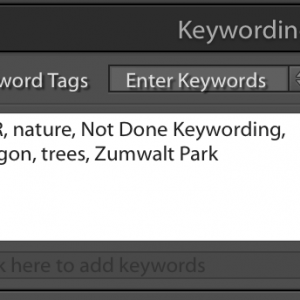
Anywhere you see a color selection square in Lightroom, such as for page background color in the Print module, you can choose a color not only from the color picker that comes up when you click on it, but also a color from one of your photos. How? Simply click in the main color selection area (shown above where the eyedropper is), hold the mouse button down, and drag out to your photo, either in the main window or down in the filmstrip. You can actually select a color from anywhere on your monitor, so if you want a color that is on a web page, for example, position it next to Lightroom, then just click, hold and drag out [...more]
Making a Photo Collage Desktop Background Image or Screen Saver Using Lightroom’s Print ModuleIf you watched my video tutorial on the Custom Print Package in Lightroom 3, you know how to make a collage of photographs. Here’s an example I put together quickly, leaving the background color white, and adding a grey stroke border to the images (the black frame is not part of the result): You could make your collage any size, and just let Windows or Mac OS X resize and stretch it to fit your monitor, but why not make it the exact size needed, so that it fills your monitor and there is no distortion? |
Free Lightroom Printing Video TutorialsSeveral of my readers and Lightroom Fundamentals and Beyond DVD customers have contacted me to find out if I plan to produce a series on Printing with Lightroom. I do, but I do not have a date for it at this point. Therefore, I thought I would pull together a couple of video tutorials on printing that I did a while back, for you to enjoy for free. The first video covers both Custom Print Package layout and watermarking capabilities in Lightroom 3. I love the Custom Print Package — it allows me to layout multiple images on a page any way I want, and add some text to the page as well. The second video covers how to find, [...more] |
|
Finding and Adding a Printer ProfileFor highest quality printing results through Lightroom, you will want to use printer profiles. A printer profile is a paper and printer-specific set of instructions that adjusts your image to be as close as possible in print to what you see on your (calibrated!) monitor in terms of contrast and color. So where do you get them, and how do you install and use them? Click HERE to go to an updated post and watch a video I have produced answering these very questions. I may explain in a follow up post more about why you need them and where you can get great quality profiles if the paper manufacture profiles fall short. This is a quick post before I [...more] |
A Most Useful Shortcut for Viewing Images Full ScreenWhile I know a fair amount about Lightroom, I am always picking up more from my fellow bloggers. Here’s a quick but useful shortcut from Sean McCormack over at Lightroom-Blog.com: To see your image and nothing but your image, type Shift-Ctl-F on the PC, or Shift-Cmd-F on the Mac. This will hide the surrounding panels, menu bars, tool bars and system task bars, and your image will be displayed as close to full-screen-size as possible . While in this view, you can use your left and right arrow keys to scroll to other images. This shortcut works in all modules, and your other module shortcut keys will continue to work, such as 0-5 for stars and P for Pick/X for [...more] |
|
What You See Is Not What You Get? Time to Learn to Calibrate Your MonitorWhen you print images yourself or send them out to a printing service, do your prints look like what you see on your monitor? If not, there may be many reasons for this, but the first to consider is that your monitor is very possibly off in terms of color, brightness and contrast. If, for example, your monitor is too bright, then your prints will come out darker than you expect. If your monitor is too blue, your prints will look too yellow (the opposite of blue). The solution is to calibrate and profile your monitor on a regular basis, using what is called a colorimeter. I recommend the Eye One Display 2, though I am sure there are other [...more] |
An Easier Way to Get Your Color in LightroomYou are designing a slideshow, and you want the background color to be a particular color from one of your images. Or, you are designing a web gallery, and you want the background color to be the color on your website, or some other cool color you have found. The question is, how do you find out what that color is, and tell Lightroom to use it? A while back I wrote a post on using Photoshop to identify the color, and then specifying this color in Lightroom. It turns out though, that there is an easier way — you can do it all within Lightroom. This is why I love Lightroom more every day — it just continues to [...more] |
Cropping Your Image for PrintNeed to produce a print of a specific size, like 5″x7″? These are most likely not the proportions of your original image, so somewhere in your workflow you will need to crop the image to these proportions. You could use the crop overlay tool in the Develop module to get the proportions and then go to the Print module to print, but I like this alternative better: In the Print module: Turn on Zoom to Fill and Rotate to Fit in Image Settings In Layout, set the Cell Size to 5″x7″. If your image is of different proportions, part of the image now necessarily doesn’t show and won’t print. Click inside your image and drag to specify what part of [...more] |