Waiting for the light to get good so you can shoot? In line at the DMV? Relaxing on your summer vacation? Whip out your iPad, iPhone, or other MP4 video-compatible mobile device, watch my Lightroom videos, and learn how to take your photography post-processing to the next level! My Lightroom 3 and Lightroom 4 Fundamentals & Beyond Series are i-Compatible. To add them to your iTunes library, go to File>Add Folder, and select the folder or folders from your purchased DVD or download. Then sync Movies on your iPad or iPhone. (Sorry I don’t have instructions for Android and other devices, but if they support MP4 videos, they will play my videos.) Lightroom 4 Fundamentals & Beyond: Over 10 1/2 [...more]
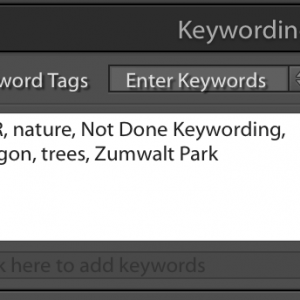
Don’t Forget to Keyword Those Photos! How to Keep Track of Them So You CanAs much as I like to come across to you as perfectly organized, I have to admit that I am not always as disciplined as I should be about immediately completing my keywording of photos after I import them. During those organizational spurts that I go through to clean this up, it would be nice to be able to get back to those photos that I need to finish. In the Collections panel there is a smart collection called Without Keywords, that if you click on it, does display all photos in your catalog that have no keywords: The problem is, that as as soon as you add one keyword to a photo, it disappears from this rule-based collection, because [...more] |
Help – Lightroom Lost All My Photos!This is one of the most common, and certainly the most stress-filled request I get for help. You open up Lightroom, and there is nothing there — all the photos you have imported and worked on are gone. Fortunately, this usually isn’t the disaster that it at first seems to be. When you are in Lightroom, you are looking at Lightroom’s catalog. You can read more about the relationship between the catalog and your photos in my earlier post, About Your Images and the Lightroom Catalog. In a nutshell, the catalog contains all the information about your photos, all the work you do on your photos, and some snapshots of your photos, but not the photos (original raw files, jpegs) [...more] |
|
Ten Reasons Why Lightroom Users May Want to Buy PhotoshopPhotoshop CS6 started shipping yesterday, so I anticipate that a lot of photographers not currently using Photoshop are wondering if they should consider it. I am assuming for the sake of this article that you are already using Lightroom. (If not, you may want to read this post, which talks about why I think pro’s as well as amateurs who really care about their photography should.) The question here is, do you need Photoshop too? There is certainly much that you can do in Photoshop that you can’t do in Lightroom. The key questions are, do you need or want to do enough of those things to justify the $699 price tag, and are you willing and able to invest [...more] |
Running Out of Space? How to Move Photos to Another Hard DriveI am running out of space on my internal hard drive, so I need to move some or all of my photographs to an external hard drive. I know I am not the only one facing this issue, as I get questions from readers at least once a week on how to do this. In this short video, I will show you how to move your photographs to another hard drive, working completely in Lightroom. (Once you hit the play button, click on the sprocket wheel in the bottom right of the video screen to increase the quality to 720p. It’s still not up to my DVD video standards, but it is better, at least!) Enjoyed this article? Get Email [...more] |
Lightroom Quick Tip: Seeing Folder Information in Grid ViewHere’s a question I got this week: “I have many duplicates of photos on my hard drive and in Lightroom. If I click on All Photographs (or some subset) and sort by capture date, I can see the duplicates side by side, but I can’t figure out how to easily see which folder each of the duplicates are in, so I can decide which to delete and which to keep. I know I could right-click on a photo and choose Go to Folder in Library to jump to the folder, but I don’t want to jump to it, I just want to know what it is. Is there an easy way?” Kathy Lightroom to the rescue! For this type of [...more] |
How to Email Photos Directly from Lightroom 4There is a new option in Lightroom 4 to email photos directly from Lightroom, rather than having to export jpegs to your hard drive, and then outside of Lightroom, attach them to your email. It has some limitations that I’ll discuss, but I find that it often saves me a lot of time. Select one or more photos that you want to email, from the filmstrip in any module in Lightroom or from the grid in the Library module, then right-click inside one of the selected photos and choose Email Photos. Lightroom can use the email program (“client”) on your computer, such as Outlook or Mac Mail, or any web email service, such as Gmail or AOL. You will choose [...more] |
Updating Develop Presets for Lightroom 4Because Lightroom 4 has different Basic Panel controls than Lightroom 3, if you have created presets in Lightroom 3 that use Basic panel controls, you may be finding that they don’t look as expected now that you are using them in Lightroom 4. Sharad Mangalick, one of the Adobe product managers for Lightroom, has written a post on how to update your presets for Lightroom 4, over on the Lightroom Journal. By the way, this is an excellent blog to follow to keep up on Lightroom bug fixes, new releases, and more. |
Video Tutorial: How to Find Your Photos in LightroomLightroom can perform amazingly fast searches for your photos. When I search for my winter tree photos in my catalog of over 30,000 photos, Lightroom will display the results before I can even snap my fingers. Of course I have to have taken the time to keyword my photos first! Lightroom can search on more than just keywords. In fact you can search on just about any information about your photos that you can imagine — camera and exposure information, file name and type, stars and other attributes, location, and much, much more. Rather than write a long article on how to search for your photos in Lightroom, here is a video tutorial in which I show you. It is [...more] |
creativeLIVE Lightroom Workshop Recording Available!I hope you were able to catch all or part of my 3-day Lightroom Fundamentals workshop last week on creativeLIVE! If you missed the workshop, or you want to watch it again, remember that you can purchase the entire 3-day recorded workshop, at creativeLIVE.com for $99. If you don’t know creativeLIVE, you MUST check them out! They offer free high-quality multi-day photography workshops online. It was truly a privilege to teach for this fabulous team, and I thank them all for creating this wonderful live worldwide classroom, and for their professionalism, energy and stamina, encouragement and support, and for making it so fun! It was particularly wonderful to have the interaction with not only the great in-studio audience, but also [...more] |