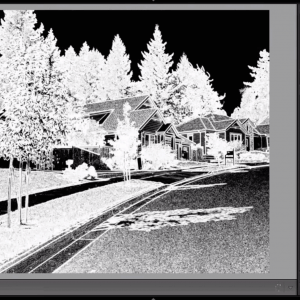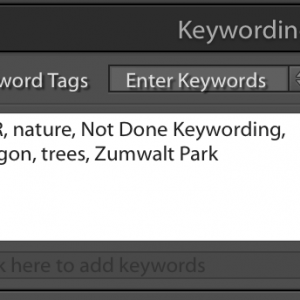
As much as I like to come across to you as perfectly organized, I have to admit that I am not always as disciplined as I should be about immediately completing my keywording of photos after I import them. During those organizational spurts that I go through to clean this up, it would be nice to be able to get back to those photos that I need to finish. In the Collections panel there is a smart collection called Without Keywords, that if you click on it, does display all photos in your catalog that have no keywords: The problem is, that as as soon as you add one keyword to a photo, it disappears from this rule-based collection, because [...more]
Help – Lightroom Lost All My Photos!This is one of the most common, and certainly the most stress-filled request I get for help. You open up Lightroom, and there is nothing there — all the photos you have imported and worked on are gone. Fortunately, this usually isn’t the disaster that it at first seems to be. When you are in Lightroom, you are looking at Lightroom’s catalog. You can read more about the relationship between the catalog and your photos in my earlier post, About Your Images and the Lightroom Catalog. In a nutshell, the catalog contains all the information about your photos, all the work you do on your photos, and some snapshots of your photos, but not the photos (original raw files, jpegs) [...more] |
Running Out of Space? How to Move Photos to Another Hard DriveI am running out of space on my internal hard drive, so I need to move some or all of my photographs to an external hard drive. I know I am not the only one facing this issue, as I get questions from readers at least once a week on how to do this. In this short video, I will show you how to move your photographs to another hard drive, working completely in Lightroom. (Once you hit the play button, click on the sprocket wheel in the bottom right of the video screen to increase the quality to 720p. It’s still not up to my DVD video standards, but it is better, at least!) Enjoyed this article? Get Email [...more] |
|
Lightroom Quick Tip: Seeing Folder Information in Grid ViewHere’s a question I got this week: “I have many duplicates of photos on my hard drive and in Lightroom. If I click on All Photographs (or some subset) and sort by capture date, I can see the duplicates side by side, but I can’t figure out how to easily see which folder each of the duplicates are in, so I can decide which to delete and which to keep. I know I could right-click on a photo and choose Go to Folder in Library to jump to the folder, but I don’t want to jump to it, I just want to know what it is. Is there an easy way?” Kathy Lightroom to the rescue! For this type of [...more] |
How to Email Photos Directly from Lightroom 4There is a new option in Lightroom 4 to email photos directly from Lightroom, rather than having to export jpegs to your hard drive, and then outside of Lightroom, attach them to your email. It has some limitations that I’ll discuss, but I find that it often saves me a lot of time. Select one or more photos that you want to email, from the filmstrip in any module in Lightroom or from the grid in the Library module, then right-click inside one of the selected photos and choose Email Photos. Lightroom can use the email program (“client”) on your computer, such as Outlook or Mac Mail, or any web email service, such as Gmail or AOL. You will choose [...more] |
Video Tutorial: How to Find Your Photos in LightroomLightroom can perform amazingly fast searches for your photos. When I search for my winter tree photos in my catalog of over 30,000 photos, Lightroom will display the results before I can even snap my fingers. Of course I have to have taken the time to keyword my photos first! Lightroom can search on more than just keywords. In fact you can search on just about any information about your photos that you can imagine — camera and exposure information, file name and type, stars and other attributes, location, and much, much more. Rather than write a long article on how to search for your photos in Lightroom, here is a video tutorial in which I show you. It is [...more] |
Getting Started with Lightroom 3 or Lightroom 4: Importing Photos and VideosLightroom is a fabulous program, but it can be daunting. Here are a few resources to get you started with getting your photos and videos into Lightroom. 1. An article on how Lightroom works with a catalog and what importing really means. 2. Two Videos from my Adobe Photoshop Lightroom 4: The Fundamentals and Beyond – Workshop on Video series (of 10 1/2 hours of training on 55 videos) on importing photos and videos — i.e. getting Lightroom to see them: The first covers importing photos already on your hard drive, as well as other import basics, such as setting up a copyright and contact information preset. (Do watch this one first, as I cover Import basics that the second [...more] |
Getting Places Fast: Three Lightroom Library Quick TipsLightroom can really make your life easier, if you know how to ask it to. Here are a few tips for finding things or getting places quickly: You’re working with a photo or folder in Lightroom, but need to go out and view it in Windows Explorer or Mac Finder. Lightroom can get you there – Right-Click (Ctl-Click on a one button mouse) on the photo or folder, and choose Show in Explorer/Finder. Lightroom will launch an Explorer or Finder window, with the photo or folder selected. In Lightroom, you finally found the photo you have been looking for, by scrolling through your catalog or doing a filter. But where does this photo live — what folder is it in? Lightroom can [...more] |
Lightroom Quick Tip: Finding and Importing Photos That Aren’t Yet in LightroomIf you have a folder in Lightroom such as your Pictures folder, but you are not sure that all of the photos in that folder and its subfolders have been imported in Lightroom, you can have Lightroom check for you! Right-click on the folder, and choose Synchronize Folder. The dialog below will show you how many new photos it found, if any, and give you the option to import them. I recommend checking Show import dialog before importing, so that you can be sure that you really do want to import them. In the Import dialog, uncheck any photos you don’t want to import, choose Add in the top center to add to the catalog without copying or moving, [...more] |
Have You Created Your 2012 Metadata Copyright Preset?Whether you had one for 2011 or not, now is the perfect time to create a 2012 copyright preset, that will add your copyright information to your photos’ metadata automatically when you import them. In the Import dialog, in the Apply During Import panel on the right, click on the drop down next to Metadata, and choose New… |